How to Play Minecraft Bedrock with Friends
Learn how to play Minecraft Bedrock with friends using invites, Realms, servers, or LAN. This guide also covers cross-play, settings, and common join issues.
How to Play Minecraft Bedrock with Friends is simple once you know which option fits your group. This guide will show you the main ways to join friends, from invite-only worlds to Realms, servers, and local play.
Quick Answer:To play Minecraft Bedrock with friends, sign in with a Microsoft account, add your friends, and invite them to your world from the Friends tab. You can also use Minecraft Realms for an always-online world, join the same server, or play on LAN if you are on the same network.
How to Play Minecraft Bedrock with Friends
Minecraft Bedrock makes cross-play easy. Players on Xbox, PlayStation, Nintendo Switch, Windows, iOS, and Android can play together if they are on the same version and signed in. The best method depends on how often your group plays and who needs to host the world.
Table of Contents
Quick Overview
Minecraft Bedrock gives you a few ways to play with friends. You can invite them to your world, use a Realm, join the same server, or play together on the same Wi-Fi network.
The easiest choice is a normal friend invite. It works well when the world owner is online. If you want the world to stay open even when the owner is offline, use a Realm or a server.
- Friend invite: Best for quick survival or creative worlds.
- Realm: Best for a private world that stays online.
- Server: Best for public games, mini-games, survival, factions, and bigger groups.
- LAN play: Best for players in the same house or on the same Wi-Fi.
Main Guide
Before you start, make sure everyone is using Minecraft Bedrock Edition. Bedrock is the version on Xbox, PlayStation, Nintendo Switch, Windows, mobile, and most modern consoles.
You also need a Microsoft account for online multiplayer. Console players may also need their platform’s online service, like Xbox Game Pass Core, PlayStation Plus, or Nintendo Switch Online, depending on the device.
How It Works
Minecraft Bedrock uses Microsoft accounts to connect friends across platforms. This means an Xbox player can join a friend on mobile, Windows, Switch, or PlayStation in many cases.
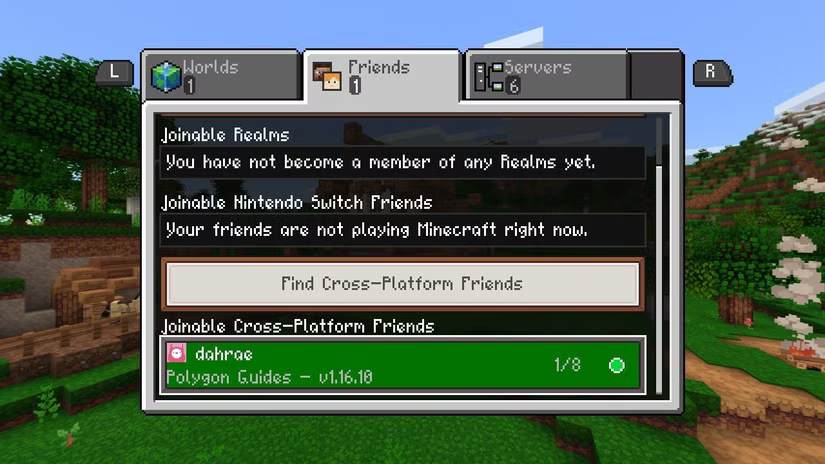
To invite someone, you need to add their Microsoft gamertag first. After that, they should show up in the Friends tab inside Minecraft.
Here is the basic flow:
- Open Minecraft Bedrock.
- Sign in with your Microsoft account.
- Add your friend using their gamertag.
- Start or open a world.
- Make sure multiplayer is turned on in the world settings.
- Invite your friend from the pause menu or Friends tab.
If your friend cannot join, check the world settings first. The world must allow multiplayer. Also check privacy settings on the Microsoft account, especially for child or teen accounts.
Best Options
The best way to play depends on your group. Some players only want a quick world after school. Others want a long-term survival world that is always open.
Option 1: Invite Friends to Your World
This is the fastest way to play. One player hosts the world. The other players join while the host is online.
Use this option if you want to play with a small group. It is great for survival, creative builds, or testing a new seed together.
- Best for: Small groups and quick sessions.
- Cost: No extra cost beyond owning the game and any needed online service.
- Downside: The host must be online for others to play.
To use friend invites, open your world, pause the game, and choose the invite option. Pick your friend from the list. They can accept the invite and join your world.
Option 2: Use Minecraft Realms
Minecraft Realms is the built-in private server option from Minecraft. It lets your friends join a shared world even when the owner is not playing.
This is one of the best choices for a steady survival world. Your group can build, mine, and explore at different times.
- Best for: Private worlds with trusted friends.
- Good for: Survival groups, family play, and long builds.
- Downside: Realms needs a paid subscription.
Realms are simple to use because they are built into the game. You do not need to set up server files or manage hosting tools.
Option 3: Join the Same Server
Servers are great if you want more than a private world. Many Bedrock servers offer mini-games, survival, skyblock, PvP, roleplay, and economy gameplay.
To play together, each friend joins the same server. Then you meet up in the lobby or use the server’s party system if it has one.
- Best for: Larger groups and public game modes.
- Good for: Mini-games, PvP, survival servers, and community play.
- Downside: Rules, lag, and features depend on the server.
Some platforms show featured servers inside Minecraft. On some consoles, adding custom servers can be more limited than on mobile or Windows. Always check what your device supports.
Option 4: Play on LAN
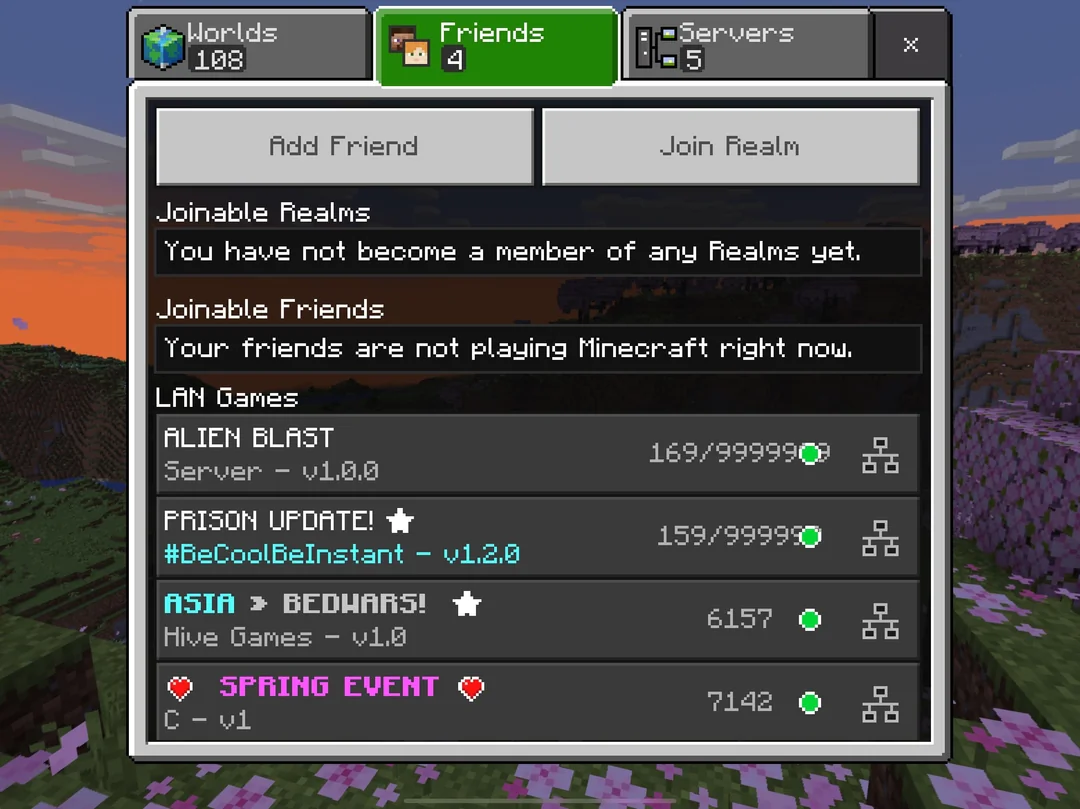
LAN play is for players on the same local network. This usually means the same Wi-Fi in the same home.
One player opens a world with multiplayer on. Other players should see the world under the Friends tab if LAN play is working.
- Best for: Same-house play.
- Good for: Siblings, family, and local hangouts.
- Downside: It may not work if network settings block local connections.
What to Look For
Before picking a method, think about how your group plays. A normal invite is fine for one night. A Realm or server is better for a world that lasts weeks or months.
Check these things first:
- Same edition: Everyone must be on Bedrock Edition, not Java Edition.
- Game version: Players should update Minecraft to the same current version.
- Microsoft account: Online play needs sign-in.
- Privacy settings: Make sure multiplayer and friend invites are allowed.
- Platform limits: Some consoles have stricter server options.
- Group size: A simple hosted world is better for small groups. Servers work better for bigger groups.
- World access: Use a Realm or server if friends need to play when the owner is offline.
If you are playing with younger players, privacy settings matter a lot. A parent account may need to allow online multiplayer, clubs, and cross-platform play in Microsoft family settings.
Also think about trust. Only invite people you trust to a private world. A friend with cheats or operator powers can change the world fast. For shared survival, set clear rules before everyone starts building.
Tips for Players
- Use the same version: Ask everyone to update Minecraft before you start. If one player is behind, invites may fail or the world may not show up.
- Share gamertags early: Add friends before game night. This saves time and helps you catch account or privacy problems first.
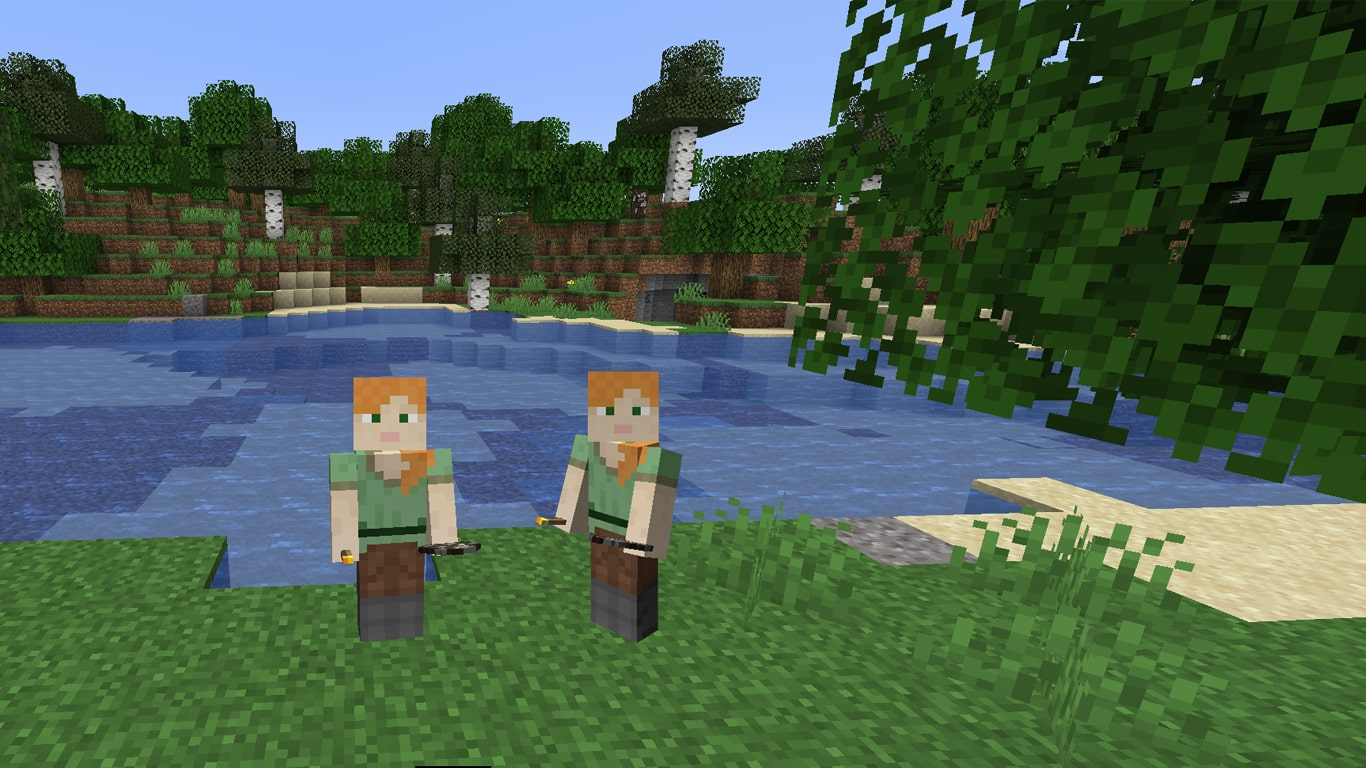
- Pick the right host: For invite worlds, choose the player with the best internet and the most play time. If they leave, everyone else gets kicked.
- Back up important worlds: If you are using a long-term world, make copies often. This helps if someone breaks a build, loses items, or a world file has issues.
- Set rules before starting: Decide if cheats, PvP, fire spread, stealing, or griefing are allowed. Clear rules stop fights later.
- Use servers for bigger groups: If you want public survival, mini-games, or PvP, a server is often better than a hosted friend world. You can use ServerTilt to find active Minecraft Bedrock servers and compare communities.
Common Mistakes
- Mixing Bedrock and Java: Minecraft Bedrock players cannot join normal Minecraft Java worlds. Make sure everyone is using Bedrock Edition.
- Forgetting privacy settings: If invites do not work, check Microsoft account settings. Multiplayer, cross-play, and friend invites may be blocked.
- Starting a world with multiplayer off: Open the world settings and make sure multiplayer is enabled before inviting friends.
- Using the wrong account: Your Minecraft name and Microsoft gamertag may not be what your friend expects. Double-check the exact spelling.
- Expecting a hosted world to stay online: A normal world closes when the host leaves. Use a Realm or server if friends need access anytime.
- Giving operator powers too fast: Only give admin or operator rights to trusted players. Operators can change settings, use commands, and affect the whole world.
FAQ
Can Minecraft Bedrock players play with friends on different devices?
Yes. Minecraft Bedrock supports cross-play across many devices, including Xbox, PlayStation, Nintendo Switch, Windows, iOS, and Android. Everyone needs Bedrock Edition, a Microsoft account, and the right online access for their platform.
Why can’t my friend join my Minecraft Bedrock world?
Check that multiplayer is turned on for the world. Also make sure both players are signed in, added as friends, and using the same Minecraft version. If it still fails, check Microsoft privacy settings and console online permissions.
Do I need a Realm to play Minecraft Bedrock with friends?
No. You can invite friends to a normal world for free, as long as the host is online. A Realm is only needed if you want a private world that friends can join when the owner is offline.
Can friends join my world when I am offline?
Not if it is a normal hosted world. Your world must be open and running for friends to join. Use a Realm or a dedicated server if you want the world online all the time.
Can I play Minecraft Bedrock with friends on the same Wi-Fi?
Yes. LAN play can work when all players are on the same local network. Open a world with multiplayer enabled, then have the other players check the Friends tab for the LAN world.
Can console players join custom Bedrock servers?
It depends on the platform. Some devices make custom server access easier than others. Featured servers are available in-game, but adding outside servers can be limited on some consoles.
Final Thoughts
The best way to play Minecraft Bedrock with friends depends on your group. Use a friend invite for quick play, a Realm for a private world that stays online, LAN for same-house play, or a server for bigger communities and game modes.
Before you start, update the game, add friends by gamertag, and check multiplayer settings. Once everyone can join, agree on rules and start building, mining, or fighting mobs together.
What Is Minecraft Bedrock? Series
Explore the main guide and supporting tutorials.
What Is Minecraft Bedrock?
Learn what Minecraft Bedrock is, how cross-play works, and how it compares to Java Edition. Find out if Bedrock is the right version for you.
How to Play Minecraft Bedrock with Friends
Learn how to play Minecraft Bedrock with friends using invites, Realms, servers, or LAN. This guide also covers cross-play, settings, and common join issues.
Fix Bedrock Mojang
What does “Fix Bedrock Mojang” mean? Here’s why Minecraft players are spamming the phrase everywhere and how Bedrock bugs turned it into a viral meme.
Is Minecraft Bedrock Cross Platform?
Yes, Minecraft Bedrock is cross platform. See which devices can play together, what accounts you need, and why Java Edition is different.
Minecraft Java vs Bedrock
Not sure which Minecraft edition to play? Compare Java and Bedrock for mods, servers, crossplay, performance, pricing, and player fit.
Related Articles
Fix Bedrock Mojang
What does “Fix Bedrock Mojang” mean? Here’s why Minecraft players are spamming the phrase everywhere and how Bedrock bugs turned it into a viral meme.
Is Minecraft Bedrock Cross Platform?
Yes, Minecraft Bedrock is cross platform. See which devices can play together, what accounts you need, and why Java Edition is different.
Minecraft Java vs Bedrock
Not sure which Minecraft edition to play? Compare Java and Bedrock for mods, servers, crossplay, performance, pricing, and player fit.
What Is Minecraft Bedrock?
Learn what Minecraft Bedrock is, how cross-play works, and how it compares to Java Edition. Find out if Bedrock is the right version for you.