
Roblox FPS Boost Guide
Get smoother Roblox gameplay with simple graphics and device tweaks. Learn what to change, how to test it, and which risky FPS fixes to avoid.
This Roblox FPS Boost Guide will help you get smoother gameplay and spot what is slowing your device down. You’ll learn which settings to lower, what to close in the background, and how to tell low FPS from network lag.
Quick Answer:Start by lowering your graphics quality in Roblox and closing apps you do not need. Test one change at a time in the same experience. Avoid random “FPS booster” downloads, and remember that higher FPS will not fix a slow internet connection.
Roblox FPS Boost Guide: Start With Simple Fixes
Aim feels harder when your screen stutters. Jumps can be harder to time, too. Before buying new hardware, try small changes that reduce the work your device has to do.
There is no single FPS fix for every Roblox experience. A busy scene with lots of players and effects may run worse than a small, simple map. The goal is steady performance, not just a high number while standing still.
Table of Contents
Quick Overview: FPS or Network Lag?
Players often call both problems “lag,” but they need different fixes:
- Low FPS: The camera looks choppy, movement stutters, or the whole view feels rough.
- Network lag: Players may snap between positions, or actions may take too long to register even when the camera moves smoothly.
Try this first: Turn your camera in a quiet area, then visit a busy spot. If the view becomes much choppier, start with graphics and device performance checks. If actions feel delayed but the view stays smooth, check your connection too.
Main Guide: Get Smoother Roblox Performance
Start with the settings inside Roblox. Then check your device. Keep the same experience open while testing, so you can see whether each change helps.
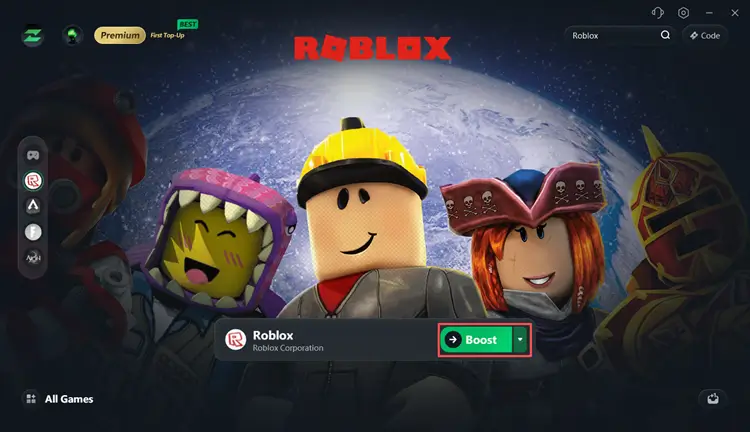
How It Works
FPS means frames per second. Each frame is a new picture your device draws. More frames can make movement look smoother, but a steady frame rate matters too. Big drops during fights can feel worse than a lower, steady rate.
Your graphics chip draws the scene. Your processor handles other game work. Lower graphics can help with drawing, but they cannot fix every slowdown. Some experiences have heavy effects or game systems that still strain your device.
Best Options: Adjust Graphics First
- Join an experience. Pick one you play often.
- Open the Roblox menu. On a keyboard, press Esc. Open the Settings tab.
- Find Graphics Mode. Where this option is available, change it from Automatic to Manual.
- Lower Graphics Quality. Move it down a few steps rather than changing everything at once.
- Resume play. Walk through the same area and turn your camera.
- Find a good balance. If play feels smooth, raise quality one step at a time until you find a level that looks clear and runs well.
Menus can differ by platform. Roblox’s graphics quality help page covers its graphics controls.
Also check the experience’s own settings menu. If it offers controls for shadows, particles, or other effects, try lowering those. Keep effects you need to spot attacks or follow the action.
Reduce Background Work
- Close unused apps. Start with video streams, extra browser tabs, and other games. Save your work first.
- Pause recording. Screen capture and streaming can add load. Test without them.
- Check laptop power. Battery-saving modes can limit speed. Try playing while plugged in, with power saving off.
- Keep vents clear. Put laptops on a hard, flat surface rather than a bed or blanket.
- Watch mobile heat. If your phone gets hot and slows down, stop playing and let it cool. Avoid direct sun.
Do not end system tasks you do not know. Closing a browser is a safer first step than following a script that disables services.
What to Look For During Testing
Judge the result during real play, not just in a quiet spawn area. Check these signs:
- Busy scenes: Does the game stay smooth when players and effects fill the screen?
- Clear visuals: Can you still see paths, enemies, and attack warnings?
- Longer sessions: Does performance drop as your device heats up?
- Other experiences: Is the slowdown limited to one game, or does it happen across Roblox?
If one experience runs badly while others feel smooth, that experience may be more demanding. Lower settings may help, but you may not be able to fix the problem on your device.
Keep a simple test note: Write down your graphics level and whether fights felt smoother. Change one thing, repeat the same route, and compare. This keeps you from piling on tweaks that do not help.
Tips for Players
- Let the scene load: Wait for nearby objects to appear before judging performance after joining.
- Try a fresh session: If performance suddenly gets worse, save your progress where needed, then close and reopen Roblox.
- Keep a fallback setup: Note a lower graphics level that works for busy fights. Use it when smooth movement matters more than looks.
Common Mistakes
- Trusting huge FPS promises: No tweak can promise the same boost on every device. Skip tools that ask you to disable security software.
- Copying unknown settings files: Old or unsupported tweaks may do nothing or cause problems. Stick to controls you understand and can undo.
- Buying hardware too soon: Check several experiences first. One slow game alone does not prove your device needs an upgrade.
FAQ
Will faster internet boost Roblox FPS?
Usually, no. Better internet may reduce network delays, but it does not make your device draw frames faster. Treat connection problems and choppy graphics as separate checks.
Can a less crowded server improve performance?
Sometimes. Fewer nearby players and effects may reduce the work your device does. But a smaller player count is not a sure fix. The map and game systems still matter.
Why is Roblox still choppy on low graphics?
Graphics may not be the main limit. Heat, background apps, limited memory, or heavy game systems can also cause stutters. If all experiences run poorly, check your device. If only one does, check that experience’s support channels.
Final Thoughts
Test your chosen settings in one full round or normal play session. If problems remain, note your device model, the experience name, and when the slowdown happens. Those details give support staff more to work with than “Roblox is laggy.”
Recommended Roblox Servers
Browse Roblox Servers

Experience: ⚔️ HavenFall MMO [DUNGEONS + RANKED]
Experience Players: 0
Max Players per Instance: 40
Last Updated:
Experience totals do not describe this listing's individual server.
N/A
Not Monitored


Experience Players: Unavailable
Max Players per Instance: Unavailable
Last Updated:
Experience totals do not describe this listing's individual server.
N/A
Not Monitored

Experience: [🎃] Dress To Impress
Experience Players: 106,419
Max Players per Instance: 13
Last Updated:
Experience totals do not describe this listing's individual server.
N/A
Not Monitored

Experience Players: Unavailable
Max Players per Instance: Unavailable
Last Updated:
Experience totals do not describe this listing's individual server.
N/A
Not Monitored